Chrome keyboard shortcuts Mac users can use to edit text
Chrome keyboard shortcuts Mac users need in text fields: move by word, delete text, compare Windows habits, and see which browser shortcuts take over.

You may be staring at a caret that won’t go where you expect. You switch from Windows to a Mac, click into a message in Chrome, and press Home. The page moves; the caret doesn’t. Then Ctrl+Backspace fails to erase the word you meant to delete.
For Chrome keyboard shortcuts on a Mac, start with Option-Left or Option-Right to move by word and Option-Delete to remove the previous word. Chrome documents those three on Mac. Apple documents more text-editing keys, but Google doesn’t confirm every Mac binding in Chrome fields, so I mark those separately below. (Google Chrome Help, 2026; Apple Support, 2026)
I build TypeTab, an on-device autocomplete app for the Mac. I checked the shortcut lists against Apple, Chrome, and Microsoft documentation in November 2026; the worked counts are calculations, not user measurements.
Chrome keyboard shortcuts Mac users need for text fields
Chrome’s Mac help page explicitly lists three editing shortcuts for text fields: Option-Left, Option-Right, and Option-Delete. Chrome’s own page doesn’t document the full Mac text-editing set. (Google Chrome Help, 2026)
| What you want | Shortcut | Chrome status |
|---|---|---|
| Move to the previous word | Option-Left Arrow | Documented for a text field |
| Move to the next word | Option-Right Arrow | Documented for a text field |
| Delete the previous word | Option-Delete | Documented for a text field |
| Move to the start or end of a line | Command-Left / Command-Right | Apple docs only |
| Select to the start or end of a line | Shift-Command-Left / Shift-Command-Right | Apple docs only |
| Move to the start or end of a document | Command-Up / Command-Down | Apple docs only |
| Move to a line or paragraph boundary | Control-A / Control-E | Apple docs only |
Sources: Google Chrome Help (2026); Apple Support (2026).
For the three Chrome-documented keys, “previous word” and “next word” are the browser’s labels. Google doesn’t define punctuation boundaries on that page, so check the result before replacing a word. (Google Chrome Help, 2026) For the other entries, treat Apple’s list as the Mac text-system reference, not a Chrome guarantee.
What replaces Home, End, and Ctrl+Backspace?
On Windows, Ctrl-Backspace deletes the word to the left; on Mac, Chrome documents Option-Delete for that job. Windows Home and End move within a line, while Apple’s Mac reference describes Fn-Left and Fn-Right as scrolling to the beginning or end of a document. (Microsoft Support, 2026; Apple Support, 2026)
| Windows habit | Mac equivalent to try | Works in Chrome text fields? | Note |
|---|---|---|---|
| Ctrl-Left / Ctrl-Right: move by word | Option-Left / Option-Right | Yes, Chrome documents these | The nearest direct replacement. |
| Ctrl-Backspace: delete previous word | Option-Delete | Yes, Chrome documents this | Delete one word at a time and review punctuation. |
| Home / End: start or end of line | Command-Left / Command-Right | Apple docs only | Apple lists these for Mac text editing; test in the field you use. |
| Shift+Home / Shift+End: select to line edge | Shift-Command-Left / Shift-Command-Right | Apple docs only | Hold Shift with the line-edge keys above. |
| Ctrl+Home / Ctrl+End: start or end of document | Command-Up / Command-Down | Apple docs only | A long message may scroll differently from a focused text field. |
| Ctrl+A: select all | Command-A | Apple documents it (Select All) | The same key selects everything in a field. |
Sources: Microsoft Support (2026); Apple Support (2026); Google Chrome Help (2026).
Apple lists Command-Left and Command-Right for line edges, while Chrome’s page only promises Option-based word movement in text fields. (Apple Support, 2026; Google Chrome Help, 2026)
Which Chrome shortcuts on Mac take over from text editing?
Command-L leaves the field for Chrome’s address bar, and Command-D bookmarks the current page. Those browser actions can interrupt text editing if the field isn’t receiving the keystroke; click back into the field before continuing. (Google Chrome Help, 2026)
| Shortcut | Chrome action on Mac | What to do while editing |
|---|---|---|
| Command-L | Jump to the address bar | Avoid it when the caret should stay in the page. |
| Command-D | Bookmark the current page | Don’t use it as a text-editing shortcut. |
| Command-F | Open Chrome’s Find bar | It searches the page, not necessarily the text in your field. |
| Command-Left / Right | Back / Forward in history | Click into the field first. |
Sources: Google Chrome Help (2026); Apple Support (2026).
Google Docs is a separate case: it has its own shortcut list, opened with Command-/ on a Mac. Don’t assume a shortcut documented for a regular text field also works in Docs’ editor. (Google Docs Editors Help, 2026)
If the physical Home and End keys matter to you, Apple documents a user key-binding file called DefaultKeyBinding.dict for changing text-system bindings. That document doesn’t establish that Chrome honors a particular remapping, so treat it as a macOS option to investigate — not a Chrome fix. (Apple Developer Documentation, 2016)
How many keystrokes can these edits save?
For long lines, one documented or assumed boundary shortcut can replace dozens or hundreds of repeated keypresses. The chart compares six fixed examples using a literal character-or-line repeat method; each count is derived from the example, not measured from people.
Example for the delete row: On Friday I sent the revised schedule to Maya before the client call. With the caret at the end, the final three words plus spaces and period occupy 16 characters, so 16 Backspace presses delete them; three Option-Delete presses cost 3. The Option-Delete count assumes the period isn’t a separate stop. Chrome documents Option-Delete, so that comparison has a documented Chrome shortcut.
For the typo row, the fixed text is alpha bravo charli delta echo foxtrot, with the caret after “foxtrot”; “charli” is replaced with “charlie.” For the long-message row, the example has 41 visual lines and the caret starts at the end of the last line. The other shortcut counts use a 200-character line. Apple documents the Mac text bindings used for these rows, but Chrome-specific behavior is unverified; the chart shows the arithmetic if the field honors the binding, not a promise that every Chrome editor does.
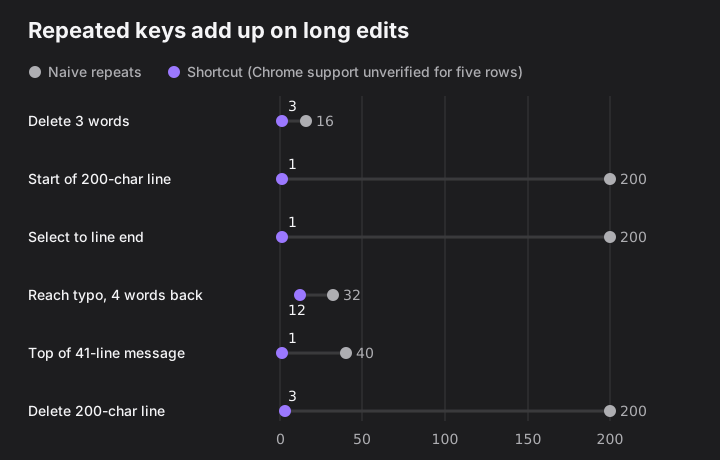
| Edit | Naive repeat count | Shortcut count | How to recount |
|---|---|---|---|
| Delete the last three words | 16 | 3 | 16 Backspace versus 3 Option-Delete; the Option-Delete count assumes the period isn’t a separate stop. |
| Move to the start of a 200-character line | 200 | 1 | 200 Left versus Command-Left. |
| Select to the end of a 200-character line | 200 | 1 | 200 Shift-Right presses versus Shift-Command-Right. |
| Reach a typo four words back | 32 | 12 | 19 Left + 6 Backspace + 7 letters = 32; 4 Option-Left + 1 Option-Shift-Right + 7 letters = 12. |
| Move to the top of a 41-line message | 40 | 1 | 40 Up presses versus Command-Up. |
| Delete a 200-character line | 200 | 3 | 200 Backspace presses versus Command-Left, Shift-Command-Right, Backspace. |
These are keystroke counts for the stated strategy, not time saved. Word segmentation, punctuation, line wrapping, and editor behavior can change what a real field selects. The Apple-only shortcuts in the final five rows need a quick field check before you build a habit around them.
Mac text-editing cheat sheet
Keep these three Chrome-documented keys together; treat the remaining Mac bindings as candidates to test in your field. Chrome’s help page confirms only the first three as text-field shortcuts, while Apple’s guide describes the broader text-system bindings. (Google Chrome Help, 2026; Apple Support, 2026)
| Job | Key | Chrome status |
|---|---|---|
| Previous word | Option-Left | Documented |
| Next word | Option-Right | Documented |
| Delete previous word | Option-Delete | Documented |
| Start of line | Command-Left | Apple docs only |
| End of line | Command-Right | Apple docs only |
| Select to line start | Shift-Command-Left | Apple docs only |
| Select to line end | Shift-Command-Right | Apple docs only |
| Select previous word | Option-Shift-Left | Apple docs only |
| Select next word | Option-Shift-Right | Apple docs only |
| Start of document | Command-Up | Apple docs only |
| End of document | Command-Down | Apple docs only |
| Start of line or paragraph | Control-A | Apple docs only |
| End of line or paragraph | Control-E | Apple docs only |
Sources: Google Chrome Help (2026); Apple Support (2026).
Where TypeTab fits — honest limits, since I’m the vendor
Shortcuts reduce keystrokes while editing; autocomplete can reduce them while writing. TypeTab’s defaults are Tab for the next word and Control-E for a whole-line completion. Apple also lists Control-E as moving to a line or paragraph end, so if you rely on that binding you can reassign TypeTab’s “Accept everything” to Shift-Tab, Command-Right, or Control-Return. Those alternatives are TypeTab settings, not evidence that they behave identically in every Chrome field. (TypeTab 1.2.0 notes; Apple Support, 2026)
It’s Mac-only, and the current TypeTab requirements are macOS 14 or later on Apple Silicon; it’s an autocomplete app rather than a replacement for learning the field’s editing keys. For broader ways to reduce typing, see how to type faster on a Mac.
If Chrome uses the wrong binding, keep Option-Left, Option-Right, and Option-Delete as the documented baseline, then test any other key in the exact field before trusting it.
FAQ
What is the Mac shortcut for Ctrl+Backspace in Chrome?
Use Option-Delete to delete the previous word in a Chrome text field. Google lists that shortcut specifically for Mac text fields. (Google Chrome Help, 2026)
How do I move to the beginning or end of a line on a Mac?
Apple documents Command-Left Arrow for the beginning and Command-Right Arrow for the end of the current line in Mac text editing. Google lists Command-Left Arrow for Back and Command-Right Arrow for Forward in history; click into the field first. (Apple Support, 2026; Google Chrome Help, 2026)
Why does Home scroll the page instead of moving the caret?
On Mac keyboards, Home behavior differs from the Windows line-start habit; Apple describes Fn-Left Arrow as Home and says it scrolls to the beginning of a document. Chrome’s webpage shortcuts also distinguish page navigation from text-field editing. (Apple Support, 2026; Google Chrome Help, 2026)
Does Command-Left work in Gmail or a Chrome form?
Apple documents Command-Left as moving to the beginning of the current line, but Chrome doesn’t list it among the Mac shortcuts for text fields. Chrome does list Command-Left as Back in history, so click into the field first. I haven’t verified it across Gmail or other web editors; test in the specific field. (Apple Support, 2026; Google Chrome Help, 2026)
Do these shortcuts work in Google Docs?
Google Docs publishes its own shortcut list, and its editor may handle keys differently from a standard text field. On a Mac, press Command-/ to open Docs’ shortcut list. (Google Docs Editors Help, 2026)
Can I remap Home and End on macOS?
Apple documents DefaultKeyBinding.dict as a way to customize text-system bindings. That doesn’t confirm that Chrome will honor a particular custom binding, so check the target app after making any change. (Apple Developer Documentation, 2016)