Gmail Smart Compose: what it is and how to turn it off
Gmail Smart Compose offers sentence suggestions as you type. Turn off Smart Compose in Gmail with its own switch and keep spelling, grammar, and autocorrect.

You start an email and Gmail offers the rest of the sentence as you type. You press Tab, and it appears; you keep typing, and it goes away. Then a different button offers to rewrite the whole draft. Those are separate features with settings that Google has moved and renamed over time.
Gmail Smart Compose is the inline completion; Smart Reply offers short replies below some messages; Gemini’s “Help me write” can draft or refine a message. To turn off only Smart Compose, open Gmail on the web → Settings → See all settings → General → Smart Compose → Writing suggestions off. Leave the separate Grammar suggestions, Spelling suggestions, and Auto-correct settings on if you still want them. Google’s current Help pages document these controls separately (Google Gmail Help, checked November 2026; spelling and grammar).
I build TypeTab, on-device autocomplete for the Mac. It shows word predictions in most browser text fields, though I haven't published a Gmail-specific test, and it doesn’t check grammar. I checked Google’s current Help pages on November 8, 2026.
What is Smart Compose in Gmail, and how is it different from Smart Reply?
Smart Compose predicts text in the message you’re typing; Smart Reply offers short, ready-made responses beneath some received messages. Smart Compose offers suggestions inline as you type, and you press Tab to accept one. Smart Reply appears as choices below a message and can be edited before sending (Google Gmail Help, 2026; Smart Reply).
Google’s 2019 paper describes Smart Compose as a neural language model that generates real-time suggestions. A 2018 Google engineering post says per-keystroke predictions had an ideal response budget of 100 milliseconds. That’s a design target from the original engineering write-up, not a current latency measurement (Chen et al., 2019; Wu, Google Research Blog, 2018).
“Help me write” is a different Gemini feature: Google says it can create an email draft or refine text already in the draft for tone and clarity (Google Gmail Help, 2026). A “Tab to improve” prompt, reported by Gmail users in 2026, is a polish prompt rather than the inline Smart Compose completion. Google’s current user Help pages don’t document an individual off switch for that exact prompt (r/GMail, August 2026).
Which Gmail settings affect each writing feature?
The narrowest switches are Smart Compose, Smart Reply, Grammar, Spelling, and Auto-correct; the Gmail/Chat/Meet smart-features switch also removes Smart Compose and Smart Reply. The chart shows what Google Help says, and marks interactions it doesn’t spell out as unknown. “Kept” means Google explicitly says that setting doesn’t affect the feature; it isn’t a general promise about every account.
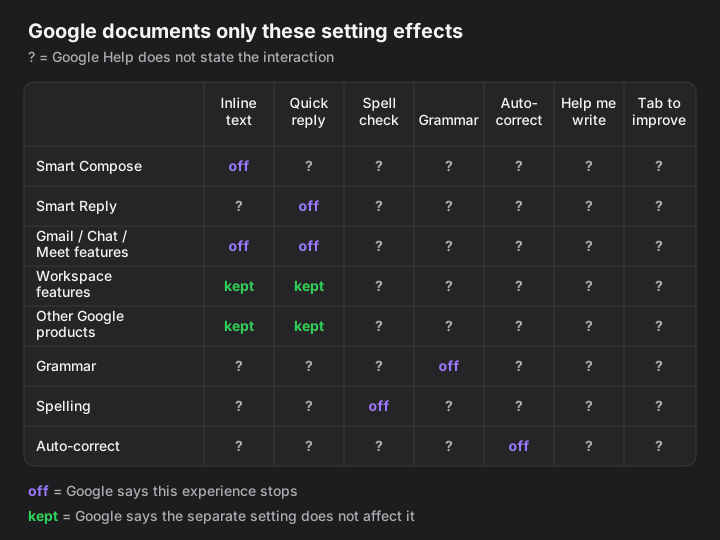
Google says the Workspace and “other Google products” smart-feature settings are separate from the Gmail, Chat, and Meet setting. In particular, turning off the Workspace setting doesn’t affect your control over Gmail’s Smart Compose and Smart Reply (Google Gmail Help, checked November 2026). The rows marked with question marks aren’t evidence that a feature stays on or turns off; Google doesn’t specify the interaction in the opened Help pages.
| If you switch this off | Documented result | Keep in mind |
|---|---|---|
| Smart Compose → Writing suggestions off | Inline suggestions stop | Smart Compose personalization is a separate setting; turning personalization off gives generic suggestions, not no suggestions |
| Smart Reply | Quick replies under messages stop | It’s distinct from inline suggestions while you type |
| Gmail, Chat, and Meet smart features | Smart Compose, Smart Reply, automatic email categories, and summary cards are unavailable | This is broader than turning off Smart Compose alone |
| Grammar, Spelling, Auto-correct | Each named writing aid has its own on/off control | Gmail can automatically correct common misspellings; Cmd-Z undoes a correction on Mac |
| Workspace / other Google products | Workspace and non-Workspace experiences are controlled separately | Their effect on “Help me write” as a Gmail button isn’t stated in the individual Help instructions |
Sources: Smart Compose; Smart Reply; smart-feature controls; spelling and grammar.
How do you turn off Smart Compose in Gmail and keep spelling and grammar?
Switch off Smart Compose by itself, then leave Gmail’s three writing-aid controls on. That preserves Gmail’s documented controls for spelling, grammar, and auto-correct without disabling the broader Gmail smart features.
The following path is docs-only: I haven’t signed into a Gmail account or run these steps against an account.
Open Gmail and click Settings → See all settings.
You should land on the full settings page, with the General tab selected.
Under General, find Smart Compose and choose Writing suggestions off. If you want to stop the inline suggestions but keep suggestions tailored to your style, don’t confuse this with Smart Compose personalization: switching personalization off changes to generic suggestions, it doesn’t turn Smart Compose off (Google Gmail Help, 2026).
The inline suggestions should stop; Google says the Smart Compose setting applies on devices where you’re signed in.
If you also want to remove quick replies beneath messages, find Smart Reply and turn it off. Otherwise leave that separate control as it is (Google Gmail Help, 2026).
The short reply suggestions should disappear from eligible messages.
Find Grammar suggestions, Spelling suggestions, and Auto-correct in General. Leave each on if you want those aids. Use Cmd-Z on Mac to undo an unwanted automatic correction (Google Gmail Help, 2026).
Gmail should continue to underline spelling or grammar suggestions and correct common misspellings, subject to language availability.
If you changed Smart Reply, click Save Changes at the bottom of the page.
Smart Reply suggestions should stop on eligible messages.
To undo the change, return to General → Smart Compose and choose Writing suggestions on, then save again.
The inline suggestions should return on devices where you’re signed in.
Two common misfires have simple fixes:
- You turned off all smart features and lost the writing aids you wanted to keep. Turn the Gmail/Chat/Meet smart-features setting back on, save, then turn off only Smart Compose and leave Grammar, Spelling, and Auto-correct on. A Gmail user report describes the same concern; Google’s own pages list the writing aids as separate controls (r/GMail, 2025; Google Gmail Help, checked November 2026).
- You turned off Smart Compose personalization, but suggestions still appear. That switch only changes personalized suggestions to generic ones. Choose Writing suggestions off to stop the inline suggestions (Google Gmail Help, 2026).
The “Smart features” switch is farther down the General page. Leave Turn on smart features in Gmail, Chat, and Meet on for the narrow setup above. If you turn it off, Google says Smart Compose and Smart Reply are among the Gmail experiences you lose; Google’s docs don’t clearly state whether the separate spell, grammar, and autocorrect controls remain usable in every account state. That’s why it’s a poor first switch when your only goal is to remove inline suggestions (Google Gmail Help, checked November 2026).
What if “Help me write” or “Tab to improve” is still there?
Turning off Smart Compose only stops Smart Compose; it doesn’t promise to remove Gemini’s drafting or polishing interface. Google documents “Help me write” as a Gemini feature that drafts or refines text, but its end-user instructions don’t identify a separate, account-wide Help me write switch. Google’s settings page does document broader Workspace smart-feature controls, but doesn’t say those controls remove the Gmail button in every plan or account (Google Gmail Help, 2026; smart-feature controls).
A practical way to test the named feature without changing unrelated settings:
- If the suggestion completes the words at your cursor, turn off Smart Compose.
- If the prompt offers to create or polish the whole message, it’s in the “Help me write” family. Do not expect the Smart Compose switch to remove it.
- If you manage a work or school account, ask the Workspace administrator which Gemini features your plan allows and which controls are available for the account. Google lists eligible Workspace plans for “Help me write,” so availability can differ by account (Google Gmail Help, 2026).
For “Tab to improve” specifically, I found user reports but no Google Help page naming that prompt or documenting how to disable it. The direct answer is a gap in Google’s published instructions, not a setting I can safely infer. If you still see it after turning off Smart Compose, you have disabled the documented inline-suggestion feature; the polish prompt remains undocumented in the pages checked November 2026.
Can you change these settings in the Gmail app?
Google documents the broad smart-feature controls in Gmail for Android, iPhone, and iPad; the standalone Smart Compose instructions give a desktop-web path. Google also warns that some computer changes may not show in the mobile app, and advises updating Gmail if mobile doesn’t notify you of a change (Google Gmail Help, checked November 2026).
For the Gmail/Chat/Meet control on mobile, open Gmail → Menu → Settings → select your account → General → Smart features. For the Workspace and other-Google-products controls, select Google Workspace smart features and manage the two settings there. Google notes that the Workspace smart-features control can only be turned on from a web browser; don’t assume the mobile screen contains the whole control set (Google Gmail Help, 2026).
For Smart Compose itself, use the documented desktop path if you need a reliable setting change: Gmail → Settings → See all settings → General → Smart Compose. Google says the account-level preference applies on devices where you’re signed in, but doesn’t give a mobile menu path on its Smart Compose Help page (Google Gmail Help, 2026).
Where TypeTab fits — honest limits, since I build it
TypeTab is an option if you want inline word predictions while you write email in the browser, without Google's Smart Compose; it doesn’t replace grammar or spelling review. TypeTab predicts locally on the Mac and has no cloud or account requirement. I haven’t tested every browser, field, or Gmail version.
The limits: Apple Silicon only, macOS 14 or later, no grammar checker, and no mid-line completion. The ghost text appears at the caret and Tab accepts the next word; TypeTab can also offer an inline spelling fix for the word you just typed. If what you want is email structure rather than word completion, the advice in how to write emails faster without sounding like a robot is free and doesn’t need another tool. For a wider privacy comparison, see what Grammarly reads and where your text goes; for voice and authorship, writing faster without sounding like AI.
The trial is 100 word completions and 20 full-line completions, with no card or account; the lifetime license is $49 for up to three Macs. That’s a fair test if you want a local alternative and already use a Mac. If you only write in Gmail and prefer Google’s built-in checker, leave Smart Compose off and keep the separate writing aids you want.
Gmail’s safest first move is the individual Smart Compose switch; widen the change only when you know which other features you’re giving up.
FAQ
What does Gmail Smart Compose do? It suggests the next words inline as you type an email. Press Tab to accept the suggestion, or keep typing to leave it behind. Google says it’s powered by machine learning and can be turned off under General settings.
Does turning off Smart Compose turn off spell check? Google exposes separate controls for Smart Compose and for spelling, grammar, and autocorrect. Turn off only Smart Compose if you want to keep those other tools; the broader Gmail/Chat/Meet smart-features switch has wider effects and Google’s current Help doesn’t clearly describe every interaction with the writing aids.
What is the difference between Smart Compose and Smart Reply? Smart Compose completes text in the message you’re writing. Smart Reply offers short suggested responses below some messages. Gmail has a separate setting for each.
Does Smart Compose also work in Google Docs? Google documents Smart Compose in Docs, Slides, Sheets, and Drawings for eligible work or school accounts, with separate app settings. In Docs, open a file → Tools → Preferences → Show Smart Compose suggestions; Google says you can’t turn it off in Sheets. These are separate controls from Gmail’s settings (Google Docs Editors Help, checked November 2026).
How do I turn off Smart Compose in Gmail on a phone? Google’s current Smart Compose Help page gives a desktop web path and says the account-level setting applies on devices where you’re signed in; it doesn’t give a mobile menu path. Change it at Gmail → Settings → See all settings → General → Smart Compose → Writing suggestions off.
Why does “Help me write” still appear after Smart Compose is off? “Help me write” is a separate Gemini feature for drafting or refining a message. Smart Compose’s switch only controls inline suggestions; Google’s user Help pages checked November 2026 don’t document an individual off switch for “Help me write” in every account.
What does the Gmail smart-features switch turn off? Google says it removes Smart Compose, Smart Reply, automatic email categories, and summary cards in Gmail, along with smart experiences in Chat and Meet. The Workspace and other-Google-products settings are separate controls.