Mac text replacement not working? Fix it by app, trigger, or sync
Mac text replacement not working? Check the shortcut, trigger, app setting, or iCloud sync, then use a workaround only where the failure actually is.

You type omw, press Space, and nothing changes. The search “mac text replacement not working” usually describes one of three failures: no app expands it, one app ignores it, or another device is missing it. Those point to different fixes.
Check that the replacement exists in System Settings → Keyboard → Text Replacements, type its exact shortcut, then press Space, Return, or another word divider. If it works in TextEdit but not in one app, check that app’s Edit → Substitutions → Text Replacement setting; if it is missing on your iPhone, check iCloud Drive and the Apple Account on both devices. Apple says text replacements are available in many apps, not all of them (Apple Support, 2026; Apple Support, 2026).
I build TypeTab, a Mac autocomplete app. It’s one possible workaround here, with its own limits. I checked the menu paths against Apple’s current Mac User Guide (macOS 27) in November 2026.
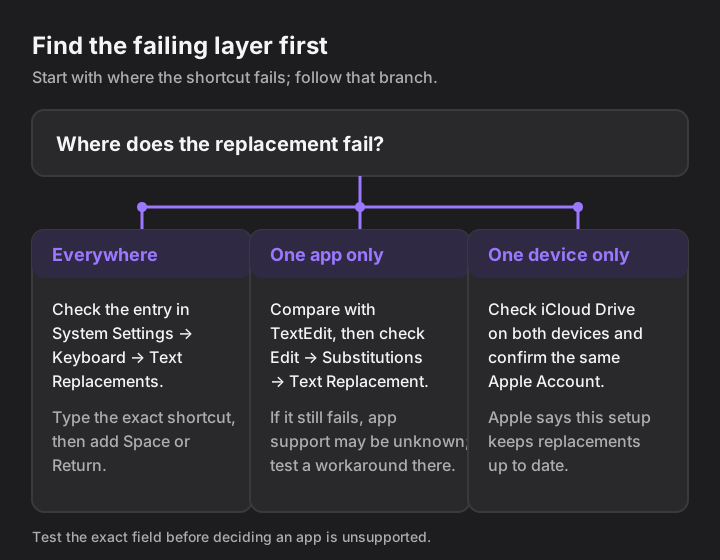
Why is Mac text replacement not working anywhere?
Check the replacement itself, then test its trigger in a known text field. A shortcut doesn’t expand just because you finished typing it: type a space, Return, or another word divider after it (MacMost, 2022).
Open System Settings → Keyboard → Text Replacements. Find the exact shortcut and its replacement in the list. If it’s missing, click +, type the shortcut and the text to replace it with, then click Add and Done. (Apple Support, 2026)
You should see the shortcut and its replacement in the list.
Open TextEdit and type the shortcut exactly as listed, followed by a space.
The short form should change to the longer text after the space.
If it still doesn’t expand, check whether you’re typing the shortcut in a field that accepts ordinary text. Try a new blank TextEdit document, not a search box or a special editor.
If it expands in TextEdit, the entry and trigger work.
To confirm the list is present without changing it, here’s the read-only command I ran on my Mac with macOS 26.7.2 on 8 November 2026:
sqlite3 ~/Library/KeyboardServices/TextReplacements.db 'select count(*) from ZTEXTREPLACEMENTENTRY'
On mine, it printed 1. The file and table are an implementation detail; if they’re missing on yours, use System Settings as the supported check. Don’t edit this database.
How to use text replacement on Mac, step by step
Create the pair in Keyboard settings, then type the shortcut followed by a separator in a text field. The abbreviation and expansion are separate fields; the trigger is a word divider such as Space or Return (Apple Support, 2026; MacMost, 2022).
Go to System Settings → Keyboard → Text Replacements.
The existing shortcut list opens.
Click +, type the shortcut and the text to replace it with, then click Add and Done.
The pair appears in the list.
In TextEdit, type the abbreviation and then Space.
The full text should replace the abbreviation. These steps are docs-only; the command above is the only first-hand test in this article.
To turn off text replacement on Mac in a particular app, switch off Edit → Substitutions → Text Replacement there. To delete the shortcut everywhere, remove it from the Text Replacements list. You can export the system list first by dragging selected replacements to the desktop, which Apple says creates a backup file (Apple Support, 2026).
Why does Mac text replacement work in one app but not another?
The shortcut list is not a guarantee that every app will use it. Apple describes replacements as available in “many apps”; an app may also have its own substitution switch or its own AutoCorrect list (Apple Support, 2026; Microsoft Support, 2026).
| App or field | What the evidence supports | What to try |
|---|---|---|
| TextEdit, Notes, Mail, Pages, Safari forms | MacMost demonstrates replacements in these examples. That’s not a promise for every field or version. | Test a shortcut with a trailing space. In the affected app, check Edit → Substitutions → Text Replacement. |
| Chrome / Chromium | Unverified. Chromium’s issue tracker requires sign-in, and I couldn’t find a readable Google or Chromium statement on current behavior. | Test the same shortcut in TextEdit and in the Chrome field. Update Chrome and test again. |
| Microsoft Word for Mac | Word has its own Word → Preferences → AutoCorrect controls and a separate “Replace text as you type” option. (Microsoft Support, 2026) | Add the shortcut to Word’s AutoCorrect list or enable Replace text as you type there. |
| New Outlook for Mac | Unverified by version. Microsoft Q&A reports from 2025 conflict: some people saw system replacements work, while others reported failures or missing AutoCorrect controls. (Microsoft Q&A, 2025–2026) | Test in a new message after checking the app menu. If it still fails, use an alternative you have verified in your Outlook version. |
| Google Docs, Slack, VS Code | Unverified. I found no primary source that establishes macOS text replacement support for these specific fields. | Test in the exact editor. If it fails there but works in TextEdit, treat it as an app-specific limit until its vendor documents otherwise. |
Sources: Apple Support (2026); MacMost (2022); Microsoft Support (2026); Microsoft Q&A (2025–2026).
Why does text replacement fail in Chrome?
Public documentation does not settle whether the exact Chrome field supports Mac text replacement. Chromium’s issue tracker requires sign-in, and I couldn’t find a readable Google or Chromium statement.
Test the same shortcut in TextEdit and in the Chrome field.
This shows whether the issue is limited to that field.
Update Chrome through Chrome → About Google Chrome, then relaunch and test again.
Record the Chrome version and field if it still fails only in Chrome.
If it still fails only in that Chrome field, treat it as a limit of that field and use a workaround there.
Why are my text replacements not syncing to iPhone?
Apple’s documented sync setup requires iCloud Drive and the same Apple Account on each device (Apple Support, 2026).
Set up iCloud Drive on your Mac and on your iPhone or iPad, signed in with the same Apple Account (Apple Support, 2026).
Create a small test replacement on one device, then check for it on the other.
The new shortcut should appear on the other device after sync. Apple’s guide says replacements update across devices; it doesn’t give a time limit for sync, so I can’t give a reliable wait time.
If iCloud Drive is already on and the devices use the same account, export a backup from the Mac before changing or removing entries. Apple’s Mac guide says you can select replacements and drag them to the desktop to create property list.plist; it also documents importing that file by dragging it into Text Replacements (Apple Support, 2026).
What if the replacement list makes typing slow?
Apple doesn’t publish a size limit for the list, so test it rather than guess.
Export a backup first. Then, in one affected app, turn off Edit → Substitutions → Text Replacement and see whether the delay changes. If it does, reduce or reorganize the list only after saving the backup; if it doesn’t, turn the setting back on and look elsewhere. Apple describes the export method in its backup and sharing guide.
Where TypeTab fits — honest limits, since I’m the vendor
TypeTab Snippets are a separate option when Apple’s text replacement does not fire in a field TypeTab can read. They expand an abbreviation as ghost text and don’t depend on the language model; they use macOS Accessibility rather than Apple’s Substitutions feature (TypeTab 1.2.0 snippets and updates).
TypeTab works in most native text fields and browser text areas, but a custom editor that doesn’t expose a usable caret rectangle may not show a suggestion. Google Docs and support in any named browser or third-party app are unverified, so test the exact field before relying on it. TypeTab requires macOS 14 or later on Apple Silicon; it’s a Mac app, not an iPhone replacement list.
To compare the tool categories, see text expanders and AI autocomplete solve different typing jobs. For Apple’s inline word suggestions, see how to turn on predictive text on Mac.
If the failure follows a particular field, the useful answer is usually at that field—not in the system-wide list.
FAQ
Why does text replacement work in Notes but not another app?
Apple says replacements work in many apps, not all. In the failing app, check Edit → Substitutions → Text Replacement. If it’s on and the same shortcut still works in TextEdit only, that app or field may not support the macOS feature (Apple Support, 2026; MacMost, 2022).
Does Mac text replacement need a space after the shortcut?
Usually it needs a separator such as Space, Return, or another word divider to trigger (MacMost, 2022).
Why is text replacement not working in Chrome on my Mac?
Public documentation doesn’t settle this: Chromium’s issue tracker requires sign-in, and I couldn’t find a readable Google or Chromium statement. Test the same shortcut in TextEdit and the Chrome field, update via Chrome → About Google Chrome, relaunch, and test again. If it still fails only in Chrome, treat it as a limit of that field.
How do I sync Mac text replacements to my iPhone?
Turn on iCloud Drive on both devices and sign in with the same Apple Account. Apple says iCloud keeps text replacements up to date across devices when that setup is in place (Apple Support, 2026).
Does Mac text replacement work in Google Docs, Slack, or VS Code?
I couldn’t verify support for those specific editors from a primary source. Test the exact field against TextEdit; if it fails only there, use the app’s own feature or an alternative you have tested in that editor.