Chrome autofill: turn off addresses, forms, and suggestions
Turn off or delete Chrome autofill by category: Mac steps for saved addresses, passwords, form history, address-bar suggestions, and Gemini suggestions.

Turning off Chrome autofill sounds like one setting. It’s several: a saved address, an old value in a form field, a search prediction in the address bar, or — since October 28 — a Gmail detail shown as a Gemini suggestion marked with the Gemini spark icon. The right switch depends on where the suggestion appears.
On Chrome for Mac, start with the place you see the suggestion. Use Autofill and passwords (Chrome's autofill settings) for saved addresses and payment details, Google Password Manager for passwords, Delete browsing data → Autofill form data for old form values, and You and Google → Google services for search suggestions. Gmail-based suggestions have their own Find and fill with Gemini switch. These paths are from Google Help, checked November 2026; the steps below are docs-only because I didn’t run Chrome’s current interface on this Mac. Google’s help pages don’t name a Chrome or macOS version.
I build TypeTab, a Mac app that predicts the next words you type. That’s different from Chrome filling a saved value.
Which Chrome autofill should I turn off?
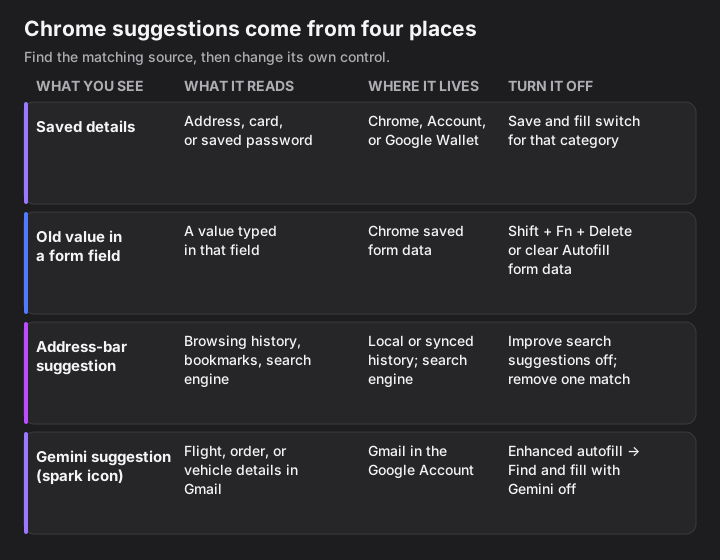
Match the place and appearance of the suggestion to its source first; four different systems can look like “autofill.” Use this table before changing anything.
| What appears | What Chrome is using | Where it lives | Switch or cleanup | What you give up |
|---|---|---|---|---|
| Your address, card, or password in a website form | Saved contact/payment info or Google Password Manager | Chrome profile, Google Account, or Google Wallet, depending on the category and sign-in | Turn off the matching Save and fill switch; passwords have a separate Password Manager setting | Chrome won’t fill that category; turning off password saving alone doesn’t remove old saved passwords |
| A name or phrase you typed before, offered in a field | Form-entry history | Chrome’s saved form data | Try Shift + Fn + Delete on the highlighted entry; clear Autofill form data to remove the set | The deleted form value is gone; other saved categories are separate |
| A website or search phrase as you type in the top address bar | Browsing history, bookmarks, or search-engine suggestions | Chrome history may be local or synced; search suggestions come from your default search engine | Turn off Improve search suggestions to stop sending what you type; remove an individual history prediction with the Mac shortcut | Search-engine suggestions stop, but local history suggestions can remain |
| A travel, order, or vehicle detail shown as a Gemini suggestion marked with the Gemini spark icon | Relevant information from Gmail via Gemini | Gmail in the connected Google Account | Autofill and passwords → Enhanced autofill → Find and fill with Gemini | Gmail-derived suggestions stop; ordinary saved autofill remains |
Google currently documents a separate switch for Gemini autofill and a different control for suggestions from a search engine. The search setting is Improve search suggestions. Turning it off stops sending typed text to the default search engine for suggestions, but Chrome may still show suggestions from local history. (Google Chrome Help, 2026)
Turn off saved addresses, payment methods, or passwords
Open the category that matches what Chrome is filling, then turn off its switch; there is no single switch for all three. Google’s current desktop path is Settings → Autofill and passwords. Google says saved changes can appear on other devices signed in to the same account. (Google Chrome Help, 2026)
Addresses and contact details
- In Chrome, open Settings → Autofill and passwords → Addresses and more.
- Turn off Save and fill addresses.
- To delete one saved address, select More next to it, then Delete.
Expected: Chrome stops saving and filling address/contact details in forms.
Payment methods
- Open Settings → Autofill and passwords → Payment methods.
- Turn off Save and fill payment methods.
- Remove a card from the list if you also want to delete it.
Expected: Chrome stops offering saved payment methods for forms.
A card or address stored in Google Wallet or Google Pay may not be deleted when you clear Chrome form data. Check the Wallet entry separately if it still appears. (Google Chrome Help, 2026; checked November 2026.)
Passwords and passkeys
- Open Passwords and autofill → Google Password Manager.
- Select Settings in the left menu.
- Turn off Offer to save passwords and passkeys.
Expected: Google Password Manager stops offering to save new passwords and passkeys. Delete saved entries separately if you don’t want Chrome to suggest them. (Google Chrome Help, 2026)
A password saved to your Google Account can be available on other devices where you’re signed in. Turning off the offer doesn’t itself erase the saved password. (Google Chrome Help, 2026)
Delete autofill from Chrome: remove an old value from a form field
For a single form-field value, try Shift + Fn + Delete on the highlighted entry; if it stays, clear Autofill form data below. Google documents this Mac combination for removing a highlighted address-bar prediction. (Google Chrome Help, 2026)
To clear saved form values in bulk:
- Open Chrome’s menu and choose Delete browsing data.
- Choose a time range. Select All time to clear all saved form data.
- Open Advanced, select Autofill form data, and choose Delete data.
Expected: Chrome removes the selected saved form data. This option doesn’t delete addresses or payment details saved in Google Pay or Google Wallet. (Google Chrome Help, 2026)
If the same value comes back, check whether it’s a saved address or password instead of a typed field value; those have their own lists.
Stop address-bar search and website suggestions
Turn off the search-engine suggestion setting if you want Chrome to stop sending what you type to the default search engine for suggestions. On Google’s current help page, open Settings → You and Google → Google services → Improve search suggestions and switch it off. Google says the address bar can use browsing history and default search engine data, and local-history suggestions may remain after this switch is off. (Google Chrome Help, 2026)
To remove just one old address-bar prediction, type until it appears, highlight it with the down arrow, then press Shift + Fn + Delete. That removes the selected prediction; it doesn’t turn off search suggestions as a whole. (Google Chrome Help, 2026)
If your browsing history is synced, deleting a URL from history also removes it from personalized suggestions. (Google Chrome Help, 2026)
Turn off Gemini autofill from Gmail
The new Gmail-based suggestions use a separate switch: Settings → Autofill and passwords → Enhanced autofill → Find and fill with Gemini. Google announced this feature on October 28, 2026: Gemini can suggest details such as order numbers, tracking information, and flight bookings pulled from Gmail. (Google, 2026)
Google Help currently limits enhanced autofill to users in the United States who are 18 or older, use Gemini in Chrome, and have opted into Personal Intelligence. It’s not a general autofill feature for every Chrome user. (Google Chrome Help, 2026; checked November 2026.)
- In Chrome, open Settings → Autofill and passwords.
- Under Autofill settings, select Enhanced autofill.
- Turn Find and fill with Gemini off.
Expected: Chrome stops offering Gmail-derived form suggestions from this feature. The setting is separate from saved addresses and passwords.
To remove just one Gemini suggestion, open the form’s suggestion menu, hover over the Gemini item, then choose Remove from Chrome. That doesn’t delete its Gmail source; deleting the original email does remove the suggestion. (Google Chrome Help, 2026)
Is “Help me write” another kind of autofill?
No: Help me write is a separate writing tool you invoke from a web text field, not a saved-value suggestion. Google still documents it for Chrome on Mac. Right-click an open field and choose Help me write; Google says text, page content, and the page URL are sent to Google when you use it. (Google Chrome Help, 2026; checked November 2026.)
Google’s current Help page doesn’t document a separate user-facing Help me write off switch. It does say the feature requires Make searches and browsing better to be on, and its troubleshooting page points to chrome://settings/account to check that requirement. Turning that broader setting off can make Help me write unavailable, but it also changes search and browsing suggestions. (Google Chrome Help, 2026)
Why does Chrome still autofill after I switched it off?
Usually the suggestion belongs to a different category, or it is coming from synced history or Wallet. Match the visible item to the table, then use the control for that source.
- An address switch didn’t stop a saved password. Open Google Password Manager, remove the saved password if you want to stop its suggestions, and turn off Offer to save passwords and passkeys if you also want to stop new save prompts. (Google Chrome Help, 2026)
- Clearing Autofill form data didn’t remove a card or address. Check Google Wallet or Google Pay; Chrome says its form-data cleanup doesn’t delete that data. (Google Chrome Help, 2026)
- Search suggestions remain after turning off Improve search suggestions. Chrome can still offer local history matches. Highlight and remove the unwanted address-bar prediction, or delete the related history entry. (Google Chrome Help, 2026; Chrome keyboard shortcuts, 2026)
You can turn the switches back on from the same settings path. Turning one back on doesn’t restore deleted saved entries or cleared form history.
Where TypeTab fits — honest limits, since I’m the vendor
Chrome autofill fills a known value; TypeTab predicts the next words of a sentence. TypeTab doesn’t suggest or learn in browser address bars, search fields, or filter boxes. In eligible web text areas it predicts locally on your Mac, and keystrokes never leave the Mac.
If your problem is Chrome inserting a stored address, turn off Chrome’s address switch. If you want sentence continuation while writing in a web text area, that’s a different job; TypeTab is a Mac-only option for Apple Silicon running macOS 14 or later. There’s no per-browser tested-support list, so I’m not claiming one. For Apple’s built-in option, see how to turn on predictive text on a Mac; for password fields and macOS Secure Input, see why Secure Input can pause typing tools.
If the box you see is really a saved value, follow its source in the table above; changing a different switch won’t clear it.
FAQ
How do I turn off autofill in Chrome on a Mac? Open Settings → Autofill and passwords, then switch off Save and fill addresses or Save and fill payment methods for the category you want. Passwords are under Google Password Manager → Settings. Typed form history, address-bar suggestions, and Gmail via Gemini each have separate controls.
How do I delete autofill from Chrome without deleting everything? Open the relevant category under Autofill and passwords and delete only the saved address, payment method, or password you no longer want. For a single old typed value in a form field, try Shift + Fn + Delete on the highlighted entry; if it stays, clear Autofill form data below. For an address-bar prediction, Google documents the same shortcut.
Why does Chrome still suggest things after I turn off autofill? The switch you changed may cover saved addresses or payments while the suggestion comes from form history, search suggestions, or browsing history. Match where it appears to the table near the top. Google also says local browsing-history suggestions may remain when Improve search suggestions is off. (Google Chrome Help, 2026)
Does turning off Chrome autofill delete my saved cards and addresses? No. The Save and fill switches stop Chrome from saving or filling that category; remove existing entries separately. Some cards and addresses are stored in Google Wallet or Google Pay, which Chrome’s Autofill form data clear option does not erase. (Google Chrome Help, 2026)
Can I turn off only Gemini autofill from Gmail? Yes. Turn off Find and fill with Gemini under Settings → Autofill and passwords → Enhanced autofill. You can also remove a specific suggestion from its menu; that leaves the source email in Gmail. (Google Chrome Help, 2026)
Can Chrome stop filling a field on one website only? For a saved password, remove that site’s saved entry in Google Password Manager; that keeps other saved passwords. Chrome’s current consumer help does not document a per-site master switch for all address, payment, and typed-form suggestions.
Chrome’s useful question is not “Is autofill on?” but “Which suggestion is this, and where did Chrome get it?”